
ZeeConvert·Aug 24, 2026·4 min read
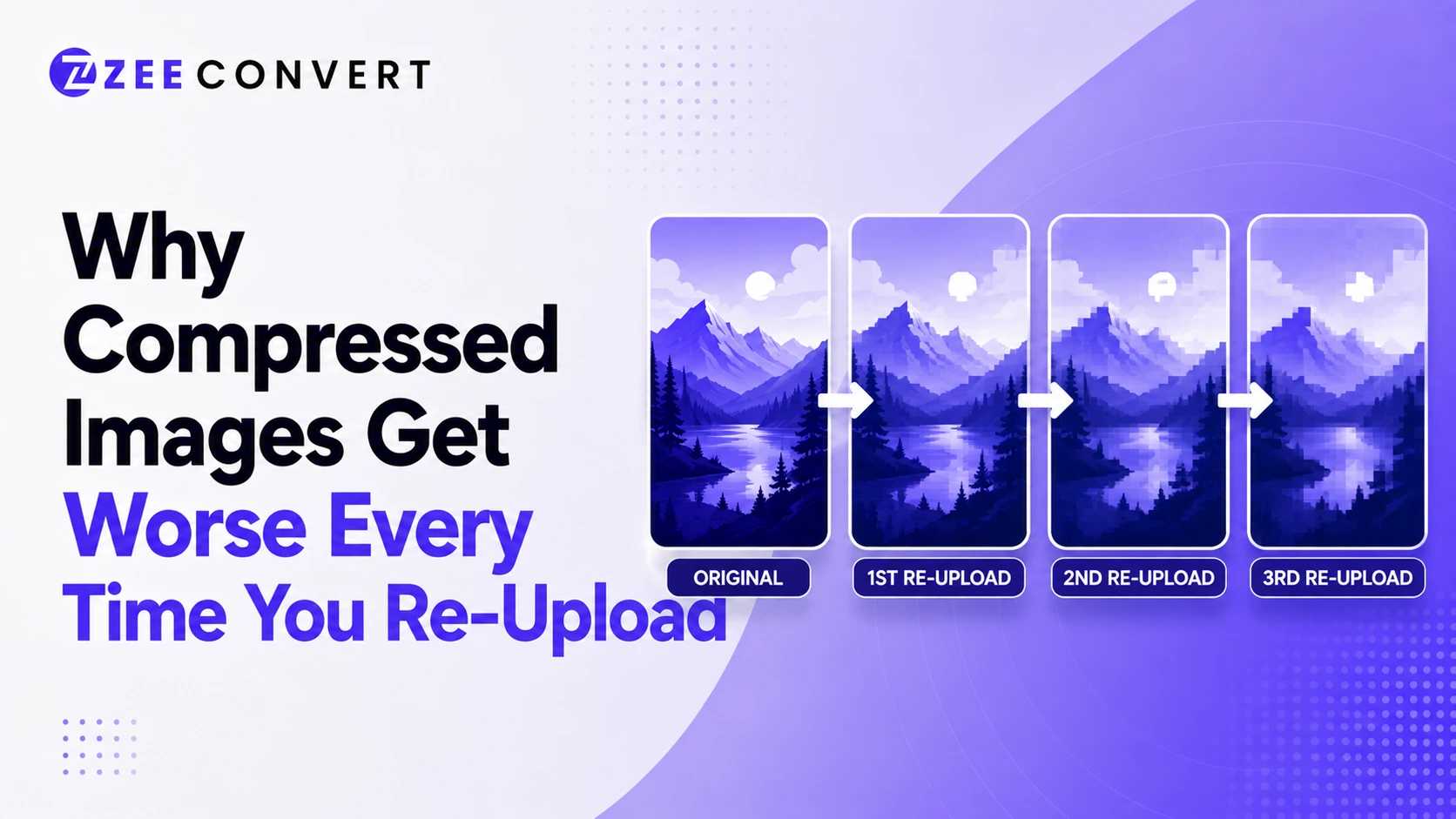
Every time an image gets compressed again, it loses a bit more detail for good. Doesn't matter if that's you resaving it or WhatsApp quietly reencoding it the moment you hit send. One compression pass barely shows. Five or six passes, especially across different apps, and you end up with mushy edges and blotchy colors that weren't there before. Save an image once from the original and you're fine. The damage comes from the same file getting downloaded, reuploaded, and recompressed somewhere new, over and over.
JPEG doesn't just squeeze your file into a smaller box, it throws stuff away. Mostly color detail and fine texture your eyes aren't great at noticing is missing. That's the whole reason JPEGs are so much smaller than PNGs in the first place.
Problem is, once that detail's gone, it's gone. Open the file again and save it, and the compressor is now working off a version that's already missing data. So it deletes more on top of that. People call this the photocopier effect for a reason. Copy a copy of a copy and each version gets a little softer, even though nobody touched the settings on the copier itself.
This is the part most people miss, and honestly it matters more than the resaving thing. You're almost never the only one compressing your file.
Upload a photo to Instagram or WhatsApp and it doesn't get stored exactly as you sent it. The platform runs its own compression pass on top, tuned for their bandwidth costs, not your photo's sharpness. Download that image later and post it somewhere else, and that second platform compresses it again. Three generations deep, and you never opened an editor once.
It's why some meme that's been bouncing around group chats for a year looks like it was shot through a fogged up window. Nobody did that on purpose. It just passed through enough platforms.
The fix here isn't complicated. Upload from your original file when you can, instead of downloading a copy off one platform to post on another. Every hop is another generation.
JPEG compresses your image in small 8 by 8 pixel blocks. Resize or crop between saves and those blocks don't line up the same way the second time around. It's like laying new tile over an old tiled floor without matching the grout lines, the mismatch creates extra mess right where the two overlap.
So if you're resizing, do it once, from your best available copy, straight to the size you actually need. Resizing a little, saving, resizing a little more, saving again, that's the exact workflow that wrecks an image fastest.
PNG is lossless, so resaving one shouldn't degrade it at all. But PNGs are big, which is exactly why platforms often convert them to JPEG or WebP on upload, and that conversion is where things start going downhill.
WebP can be lossy or lossless. Most tools default to lossy because the file size savings are worth it to them. If yours is lossy, it behaves like JPEG on repeated saves, just with smaller losses per pass thanks to more efficient compression. Not zero, though.
So the format matters less than you'd think. What actually matters is how many times the file gets recompressed and whether it stays lossy the whole way through.
Keep one master copy of anything you care about and never overwrite it. Need a version for Instagram, your website, an email attachment? Export fresh from that master every time, at the size and quality that specific use needs. Don't take a copy you already compressed and shrink it down again for something else. Always go back to the source.
If you want control over the quality tradeoff instead of letting a platform decide it for you, run the file through ZeeCompress once at a setting you're happy with, then upload that. One clean pass beats letting three different apps each take their own bite out of your photo. Once you get in the habit of working from a saved original, this whole thing pretty much stops being a problem.
Previous
KB, MB, GB, TB Explained A Complete File Size Guide
Next
Why Some Apps Still Reject WebP and What Works Instead
JPG to PNG Converter
Convert JPG photos to PNG so repeated editing and saving stops eating away at the picture.
Image DPI Converter
Change the DPI stored in a JPG, PNG, TIFF or BMP, keeping either the pixels or the printed size.
Image DPI Checker
Read the DPI stored in an image and see the size it prints at, without changing the file.
PNG To ICO Converter
Turn a PNG into a ready-to-use ICO icon for your website favicon or a Windows shortcut. Free and handled entirely in your browser.