
ZeeConvert·Aug 18, 2026·4 min read
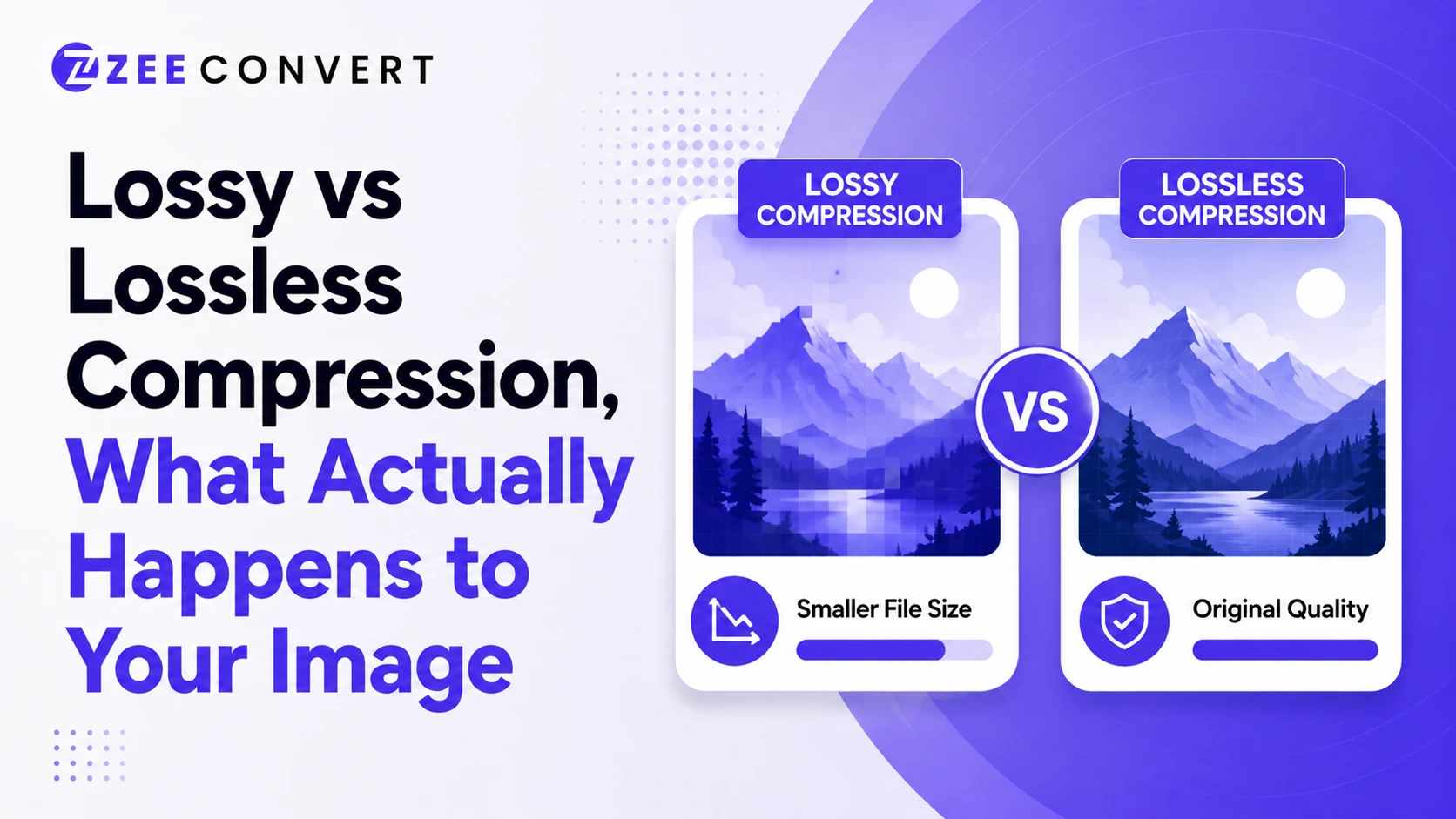
Lossy compression throws away pixel data your eyes probably won't miss, which shrinks the file a lot but means you can never get that exact data back. Lossless compression rearranges and packs the existing data more efficiently, so the file gets smaller without losing a single pixel, though the savings are usually modest. JPG is the classic lossy format. PNG is the classic lossless one. Once you understand that one core difference, most confusing behavior around image quality and file size starts making sense.
A raw image, straight off a camera sensor or an uncompressed screenshot, is huge. We're talking tens of megabytes for a single photo sometimes. Nobody wants to load that on a website or attach it to an email.
Compression exists to solve that problem. It looks for patterns and redundancy in the pixel data and finds a way to represent the same image using less storage space. The question is just how it does that, and that's where lossy and lossless split apart.
Lossy compression works because human eyes aren't that great at noticing small changes in color and detail, especially in busy areas of a photo like grass, hair, or noisy textures. JPG takes advantage of this. It groups pixels into small blocks, averages out subtle color differences within those blocks, and throws away information it calculates you're unlikely to notice.
The tricky part is that this process is one way. Once that data is gone, it's gone. Save a JPG, reopen it, save it again, and you'll lose a little more detail each time. This is called generational loss, and it's why editors always tell you to keep an original uncompressed copy and only export a JPG at the very end.
The upside is real though. A photo that might be 8MB as a raw file can often shrink to under 500KB as a JPG with barely any visible difference at normal viewing sizes. That kind of ratio is hard to beat.
Lossless compression takes a completely different approach. Instead of deciding what data to throw away, it looks for smarter ways to store the exact same data. Think of it like zipping a text file. A ZIP file of a document isn't missing any words, it's just packed more efficiently using patterns in the data.
PNG works this way for images. It uses a compression method that finds repeating patterns and stores them more compactly, but when you unpack a PNG, every single pixel value comes back exactly as it was. Nothing is approximated, nothing is guessed.
That's exactly why PNG files stay so sharp for screenshots, logos, and graphics with flat colors and hard edges, since those images tend to compress really well under a lossless approach. But it's also why PNGs of complex photos can end up way bigger than the JPG version of the same image. There's only so much redundancy to squeeze out of a photo full of gradients and noise.
If you're publishing photos on a blog, product images on a store, or anything where file size and load speed actually matter, lossy compression is almost always the right call. The quality loss at reasonable compression levels is genuinely hard to spot with the naked eye, and the file size savings directly translate to a faster loading website.
Formats like WebP have actually gotten really good at this balance too, often beating JPG at the same visual quality while producing an even smaller file.
Lossless makes sense when you need to preserve exact pixel data. Screenshots with text, UI mockups, logos, diagrams, anything where a slightly blurred edge or a shifted color would actually look wrong rather than just slightly different.
It's also the right call for any image you plan to edit further down the line. If you compress with a lossy method, edit it, then compress again, those losses stack up fast. Keeping a lossless master file protects you from that.
Honestly the file extension is usually your best clue. JPG and JPEG are lossy by design. PNG is lossless. WebP can actually do both, which trips a lot of people up since the same file extension might be either one depending on how it was exported.
If you're not sure what you're dealing with, opening the file and checking its size relative to its dimensions gives you a rough idea. A tiny file size for a large, detailed image usually points to lossy compression doing its job.
If you've got a batch of images and need to shrink them down without guessing which setting to use, our image compressor handles both approaches and lets you preview the quality before you commit to a file size.
Previous
DPI vs PPI Explained: Which One Actually Matters for Web vs Print
Next
How Much Can You Resize an Image Before It Loses Quality
JPG to PNG Converter
Convert JPG photos to PNG so repeated editing and saving stops eating away at the picture.
Image DPI Converter
Change the DPI stored in a JPG, PNG, TIFF or BMP, keeping either the pixels or the printed size.
Image DPI Checker
Read the DPI stored in an image and see the size it prints at, without changing the file.
PNG To ICO Converter
Turn a PNG into a ready-to-use ICO icon for your website favicon or a Windows shortcut. Free and handled entirely in your browser.