
ZeeConvert·Aug 17, 2026·4 min read
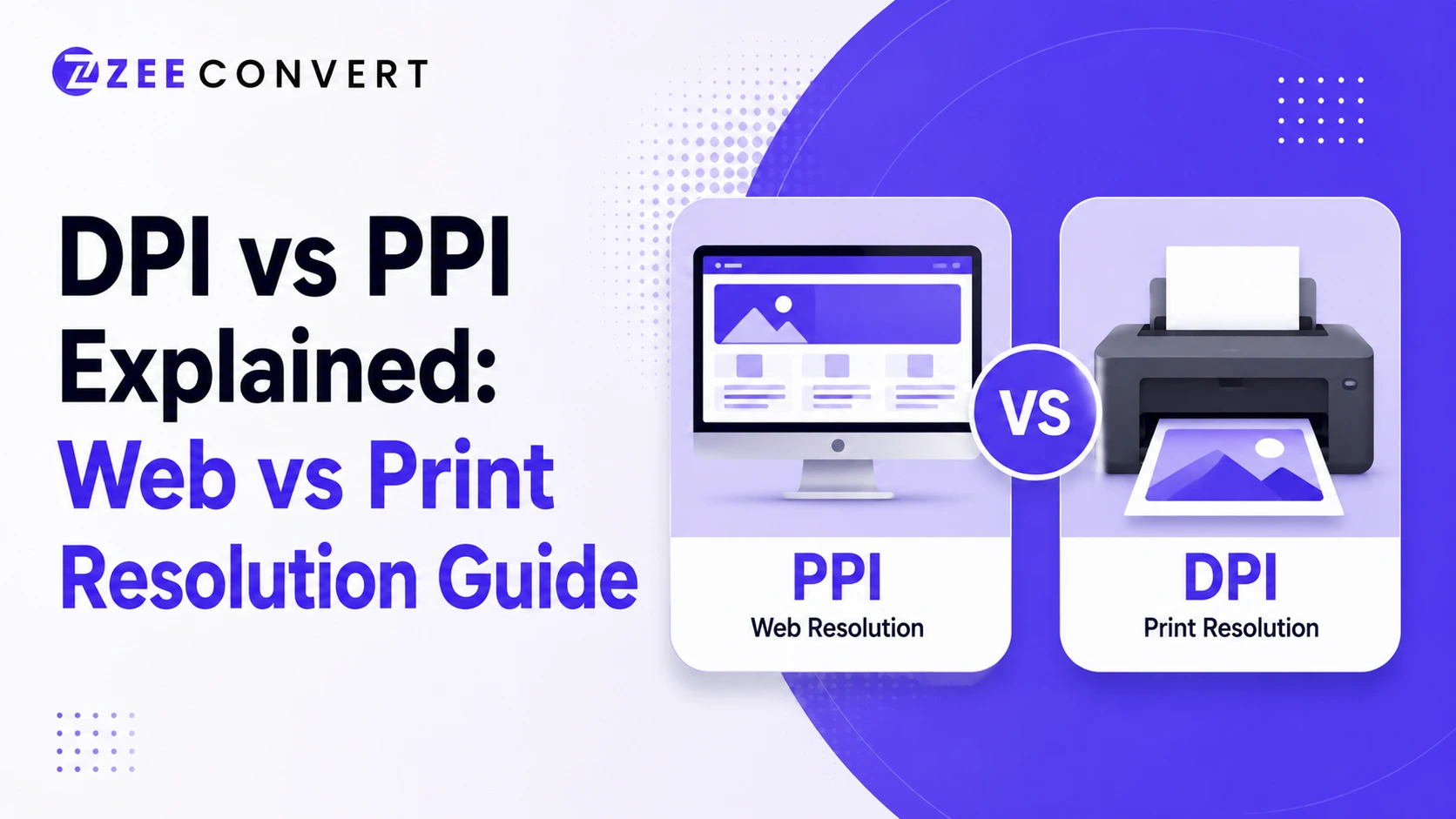
For anything going on a screen, PPI is basically meaningless and the only number that actually matters is pixel dimensions, like 1920 by 1080. For anything going to a printer, DPI is what determines sharpness, and 300 DPI is the standard target for anything you want to look crisp on paper. Most confusion around this topic comes from software labeling both numbers as "resolution" when they're solving two completely different problems.
DPI stands for dots per inch, and it's a physical measurement tied to a printer, not to your image file itself. It describes how many individual ink dots a printer can lay down in one inch of paper. More dots packed into that inch means finer detail and smoother gradients once it's physically printed.
This matters because printers work in a completely different world than screens do. A printer is placing actual physical ink or toner, and the density of those dots is what your eye interprets as sharpness or graininess on the page.
PPI stands for pixels per inch, and this one lives entirely inside the digital world. It's a way of describing how densely packed the pixels are within an image file, or how densely a screen displays those pixels.
Here's the part that trips people up constantly. A monitor doesn't care what PPI value is stamped in your image's metadata. It only cares about the actual pixel dimensions of the file. A 1000 by 1000 pixel image will always display as a 1000 by 1000 pixel image on screen, whether the file says it's 72 PPI or 300 PPI. That number is essentially just a label, ignored by every browser and app you'll ever use.
I know that sounds almost too simple, but it's genuinely the whole trick behind why this topic confuses so many people.
This is where the real world consequences show up. Say you've got a 500 by 500 pixel image pulled from a website. On screen it might look perfectly sharp, since most screens don't need a huge pixel count to display something small and clean.
Print that exact same image at a decent size on paper, though, and it falls apart. There simply aren't enough pixels packed into that physical inch of paper to produce a sharp result once a printer tries to translate it into dots. The image wasn't broken. It was never built with print resolution in mind to begin with.
Print professionals default to 300 DPI because that density lands right around the limit of what the human eye can distinguish from a normal viewing distance. Go much lower and individual dots or blur start becoming noticeable. Go much higher and you're usually just wasting file size without any visible benefit.
For web use, you can basically ignore DPI as a concept entirely. Browsers don't render DPI. They render pixels. A 72 DPI label on a web image is a leftover convention from old print workflows, not a meaningful setting for anything digital.
For screens, work backward from the pixel dimensions your layout requires. If a banner slot on your site needs to be 1200 pixels wide, your source image needs at least that many actual pixels, regardless of what DPI number shows up in the file properties.
For print, work backward from the physical print size and multiply by 300. A 4 by 6 inch photo print needs roughly 1200 by 1800 pixels to hit that standard sharpness threshold. Anything less and you'll start seeing softness or visible pixelation once it's on paper.
This is also exactly why an image that looks great as a website hero banner can still come out disappointing if someone tries printing it as a poster later. The pixel count that was plenty for a screen simply isn't enough once you're asking a printer to fill several physical inches with detail.
If you're designing purely for the web, stop thinking about DPI altogether and just focus on pixel dimensions matching what your layout needs. If you're preparing something for print, work in physical inches multiplied by 300 from the very start, rather than trying to fix resolution after the fact.
And if you're not sure whether an image you already have will hold up for either use case, checking its actual pixel dimensions through a tool like ZeeResizer will tell you exactly what you're working with, so you're not guessing whether it'll hold up once it leaves the screen.
DPI belongs to printers and physical dots on paper. PPI belongs to screens and pixel density in a digital file. Once that distinction clicks, this stops being a confusing technical debate and turns into a pretty straightforward decision based on where the image is actually headed.
If you want to change your image's DPI, try our DPI Converter tool.
Previous
Why Is My PNG Bigger Than My JPG?
Next
Lossy vs Lossless Compression - What Actually Happens to Your Image
JPG to PNG Converter
Convert JPG photos to PNG so repeated editing and saving stops eating away at the picture.
Image DPI Converter
Change the DPI stored in a JPG, PNG, TIFF or BMP, keeping either the pixels or the printed size.
Image DPI Checker
Read the DPI stored in an image and see the size it prints at, without changing the file.
PNG To ICO Converter
Turn a PNG into a ready-to-use ICO icon for your website favicon or a Windows shortcut. Free and handled entirely in your browser.