
ZeeConvert·Sep 3, 2026·3 min read
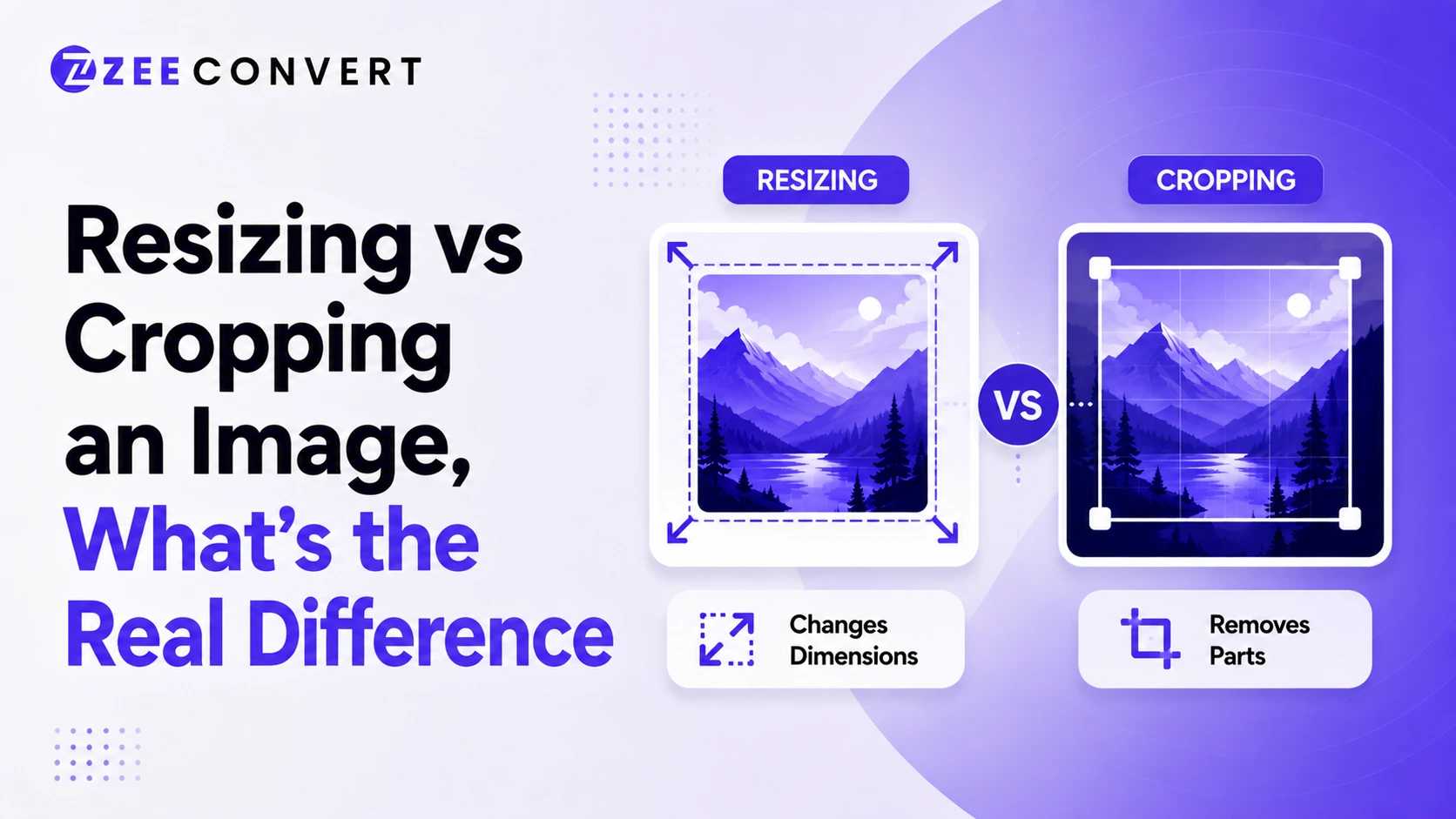
Resizing changes how big an image is without touching what's inside it. Every pixel from the original photo survives, just scaled up or down. Cropping does the opposite. It cuts pixels away entirely, so part of the photo is gone for good, but what's left can sit exactly where you want it in the frame.
| Resizing | Cropping | |
|---|---|---|
| What happens to the pixels | Scaled up or down, none removed | Part of them deleted permanently |
| Aspect ratio | Stays the same (if done right) | Changes, since the frame shape changes |
| What you see | The full original scene, just bigger or smaller | Only the part you kept |
| Typical use | Fitting a file size or pixel limit | Fixing composition or framing |
When you resize an image, software works out how to represent the same content at new dimensions. Shrink it and nearby pixels get merged. Enlarge it and the software has to invent new pixel data, which is why blown up photos start looking soft. Nothing gets removed from the frame either way.
Resizing alone almost never fixes a file that's too big in megabytes, by the way. Fewer pixels usually means a smaller file, but the actual weight depends on compression too. A resized thumbnail can still be surprisingly heavy if it wasn't compressed well.
Cropping works differently. You draw a box around the part you want to keep and everything outside it gets thrown away. That bench in the background of your photo? Gone, if you crop it out. The pixels aren't hiding anywhere, they're deleted from that version of the file.
Say you have a photo that's 4000 by 3000 pixels, a fairly standard camera ratio, and you need it at 1080 by 1080 for a square post. Resize it straight to those dimensions without cropping first and the software has to stretch or squish it to force a square. Faces get wider, buildings tilt, and it's obvious something went wrong even to people who can't explain why. Instagram is particularly unforgiving about this.
The fix, in order.
Doing it backwards, resizing first and cropping second, tends to waste detail you'll just throw away anyway. If you're prepping a batch of images for a website or store listing, a tool like ZeeResizer can handle the resizing step once your crop is locked in, so you're not stuck opening separate desktop software just for that.
Does the content inside the frame need to change, or just the size of the frame itself? If the composition is fine and you only need different dimensions, resize. If something needs to be removed, refocused, or reshaped, crop first. Getting this backwards is the single most common reason people end up with photos that look off and can't quite figure out why.
JPG to PNG Converter
Convert JPG photos to PNG so repeated editing and saving stops eating away at the picture.
Image DPI Converter
Change the DPI stored in a JPG, PNG, TIFF or BMP, keeping either the pixels or the printed size.
Image DPI Checker
Read the DPI stored in an image and see the size it prints at, without changing the file.
PNG To ICO Converter
Turn a PNG into a ready-to-use ICO icon for your website favicon or a Windows shortcut. Free and handled entirely in your browser.